Chapter 6: Publish and Custom Domains
How to publish your site, connect your own domain, configure SSL, and understand URLs.
6.1 Publish Your Site
Difference between Save and Publish
| Action | Who sees it | What it generates | Speed |
|---|---|---|---|
| Save | Only you (in the builder) | JSON in database | Instant |
| Publish | Everyone | Static HTML + inline CSS + minimal JS | 5-15 sec |
How to publish
- In the builder, click "Publish" (or
Ctrl/Cmd + P) - Select which pages to publish (default: all)
- Click "Confirm"
- Wait for HTML generation
- We show you the URL: ``` https://slug.mypagegenius.com https://slug.mypagegenius.com/about https://slug.mypagegenius.com/services https://slug.mypagegenius.com/contact ```
What publishing includes
- ✅ Optimized static HTML (no React, no heavy server)
- ✅ Inline CSS (loads instantly, no waiting for external files)
- ✅ Minimal JavaScript: mobile menu, forms, analytics, scroll-reveal
- ✅ Automatic Schema.org JSON-LD (for Google)
- ✅ Automatic sitemap.xml and robots.txt
- ✅ WebP images with srcset (adapts to screen size)
- ✅ Favicon and meta tags (OG image for social media)
- ✅ Automatic Header and Footer on all pages
Republish
Every time you edit and publish, a new version is generated. The URL doesn't change.
Example of a published site: 
6.2 Your Site URLs
Free subdomain (default)
https://slug.mypagegenius.com              → Home
https://slug.mypagegenius.com/about        → About
https://slug.mypagegenius.com/services     → Services
https://slug.mypagegenius.com/contact      → Contact
The slug is chosen when you create the project. It can be changed later in Settings.
Change the slug
- In the builder, click ⚙️ Config
- Go to General
- Edit the Slug field
- Save and publish
Warning: The previous URL stops working immediately. If you shared the old link, people will see a 404.
6.3 Custom Domains
Connect your own domain (e.g., myshop.com) instead of using the PageGenius subdomain.
Requirements
- Pro plan or higher (Free doesn't include domains)
- A domain purchased from any registrar (GoDaddy, Namecheap, Cloudflare, Google Domains, Hostinger, etc.)
- Access to your registrar's DNS panel
Step by step
Step 1: Add the domain in PageGenius
- Go to your project → Domains
- Enter your domain:
myshop.com(withoutwww, withouthttps://) - Click "Add Domain"
Step 2: Configure DNS at your registrar
Create ONE SINGLE A record:
| Field | Value |
|---|---|
| Type | A |
| Host | @ (or leave blank) |
| Value | 195.26.248.6 |
| TTL | Automatic |
Screenshot of the domains page: 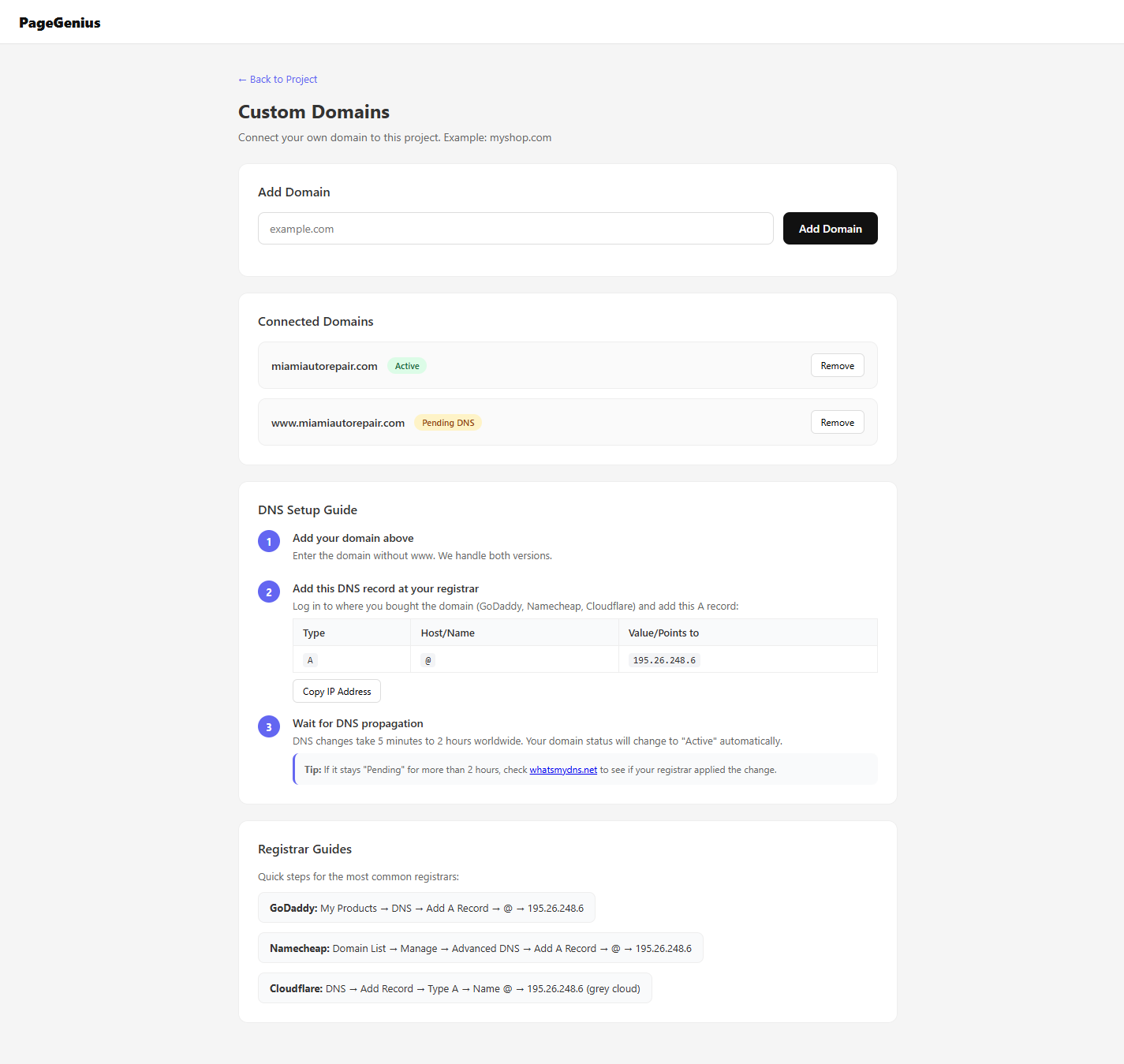
Guides by registrar:
- GoDaddy: My Products → Domain → DNS Settings → Add A Record
- Namecheap: Domain List → Manage → Advanced DNS → Add A Record
- Cloudflare: DNS → Add Record → Type A
Step 3: Wait for propagation
- Minimum: 5 minutes
- Average: 15-30 minutes
- Maximum: 24 hours
Step 4: Automatic verification
PageGenius checks your domain every few minutes. When it detects that DNS points to us, the status changes to "Active".
Domain statuses
| Status | Color | Meaning |
|---|---|---|
| Pending DNS | 🟡 Yellow | Waiting for propagation. Normal. |
| Active | 🟢 Green | DNS resolved. SSL active. Ready. |
| Error | 🔴 Red | Something failed. Check configuration. |
6.4 SSL (Green Lock)
PageGenius uses automatic SSL through Cloudflare.
What is SSL
The green lock 🔒 in the browser bar. It means the connection between the visitor and your site is encrypted.
How it activates
- Your domain must be in "Active" status
- Cloudflare issues the SSL certificate automatically
- The lock appears within 5-30 minutes after activation
Problem: "My domain is active but I don't see the lock"
- Cause: Cloudflare hasn't issued the certificate yet, or you have mixed content (some images loading over HTTP).
- Solution: Wait 30 minutes. If it persists, force HTTPS in Cloudflare: SSL/TLS → Full (strict).
6.5 Subdomains
If you want a specific section of your site on a subdomain:
landing.myshop.com    → Landing page
app.myshop.com        → (doesn't apply, PageGenius doesn't do apps)
blog.myshop.com       → (use the /blog page of your project)
How to do it:
- In your registrar, create an A record with Host=
landing(not@) - The value is still
195.26.248.6 - In PageGenius, add
landing.myshop.comas a domain
6.6 Sitemap.xml and Robots.txt
PageGenius generates these files automatically for each published site:
Sitemap.xml
https://slug.mypagegenius.com/sitemap.xmlLists all pages of your site for Google to index.
Robots.txt
https://slug.mypagegenius.com/robots.txtTells Google bots which pages they can crawl.
You don't need to do anything. They're auto-generated with each publish.
6.7 Publishing Problems and Solutions
"Publish failed"
- Cause: Rendering error in some widget, or server timeout.
- Solution:
- Check that no widgets have empty required fields
- Try publishing again
- If it persists, contact support
"My published site looks different from the builder"
- Cause: The builder uses a preview environment. Some styles may render slightly differently live.
- Solution: Use "Preview" before publishing. If there are big differences (colors, fonts, broken layouts), contact support.
"My site returns 404"
- Cause: The project was deleted, or the slug changed.
- Solution: Check that the project exists and is published. If you changed the slug, the previous URL no longer works.
Domain Problems and Solutions
"Pending DNS for more than 2 hours"
Check your DNS:
- Go to whatsmydns.net
- Enter your domain
- Select type A
- Click Search
- If you DON'T see
195.26.248.6on most servers → the problem is at your registrar
Common causes:
- ❌ Used CNAME instead of A
- ❌ IP has spaces or is misspelled
- ❌ There's an old A record with a different IP
- ❌ On Cloudflare, you have the orange proxy turned on (set it to "DNS only")
"SSL doesn't appear (no lock)"
- Wait 30 minutes after the domain is "Active"
- If you use Cloudflare: SSL/TLS → Full (strict)
- Force HTTPS: add a redirect rule in Cloudflare
"Domain is already in use"
- That domain is connected to another PageGenius project
- Solution: Go to the other project → Domains → Delete the domain → Go back to your project and add it
Chapter 6 Summary
| Task | How | Result |
|---|---|---|
| Publish site | Builder → Publish | Live site at slug.mypagegenius.com |
| Connect domain | Project → Domains → Add + DNS A record | myshop.com working |
| Verify SSL | Wait 30 min after activation | Green lock 🔒 |
| Change slug | Config → General → Slug | New URL (old one stops working) |
Next chapter: Chapter 7: Analytics and Leads