Chapter 2: Dashboard — Your Control Center
Everything you see when you enter PageGenius: stats, projects, quick actions, and how to read the numbers.
2.1 Dashboard Layout
When you log in, the dashboard is the first screen. It's divided into 4 zones:
+----------------------------------------------------------+
|  HEADER                                                  |
|  [Logo]  Dashboard  Projects  [Avatar] [Plan: Pro]      |
+----------------------------------------------------------+
|                                                          |
|  ZONE 1: WELCOME + QUICK ACTIONS                         |
|  "Good morning, Carlos"                                  |
|  [Create Project]  [View Templates]  [Generate with AI] |
|                                                          |
|  ZONE 2: STATS (4 cards)                                 |
|  ┌─────────┐ ┌─────────┐ ┌─────────┐ ┌─────────┐         |
|  │    5    │ │    3    │ │   23    │ │  4,521  │        |
|  │Projects │ │Published│ │  Leads  │ │  Views  │        |
|  └─────────┘ └─────────┘ └─────────┘ └─────────┘        |
|                                                          |
|  ZONE 3: RECENT PROJECTS                                 |
|  ┌──────────────┐ ┌──────────────┐ ┌──────────────┐    |
|  │ Auto Shop    │ │ Dental       │ │ Roofing      │    |
|  │ Miami        │ │ Mendoza      │ │ Tampa        │    |
|  │ [Edit]       │ │ [Edit]       │ │ [Edit]       │    |
|  │ [Delete]     │ │ [Delete]     │ │ [Delete]     │    |
|  └──────────────┘ └──────────────┘ └──────────────┘    |
|                                                          |
|  ZONE 4: ONBOARDING (new users only)                     |
|  "Complete your profile" → [Upload logo] [Invite team]   |
+----------------------------------------------------------+
Real screenshot: 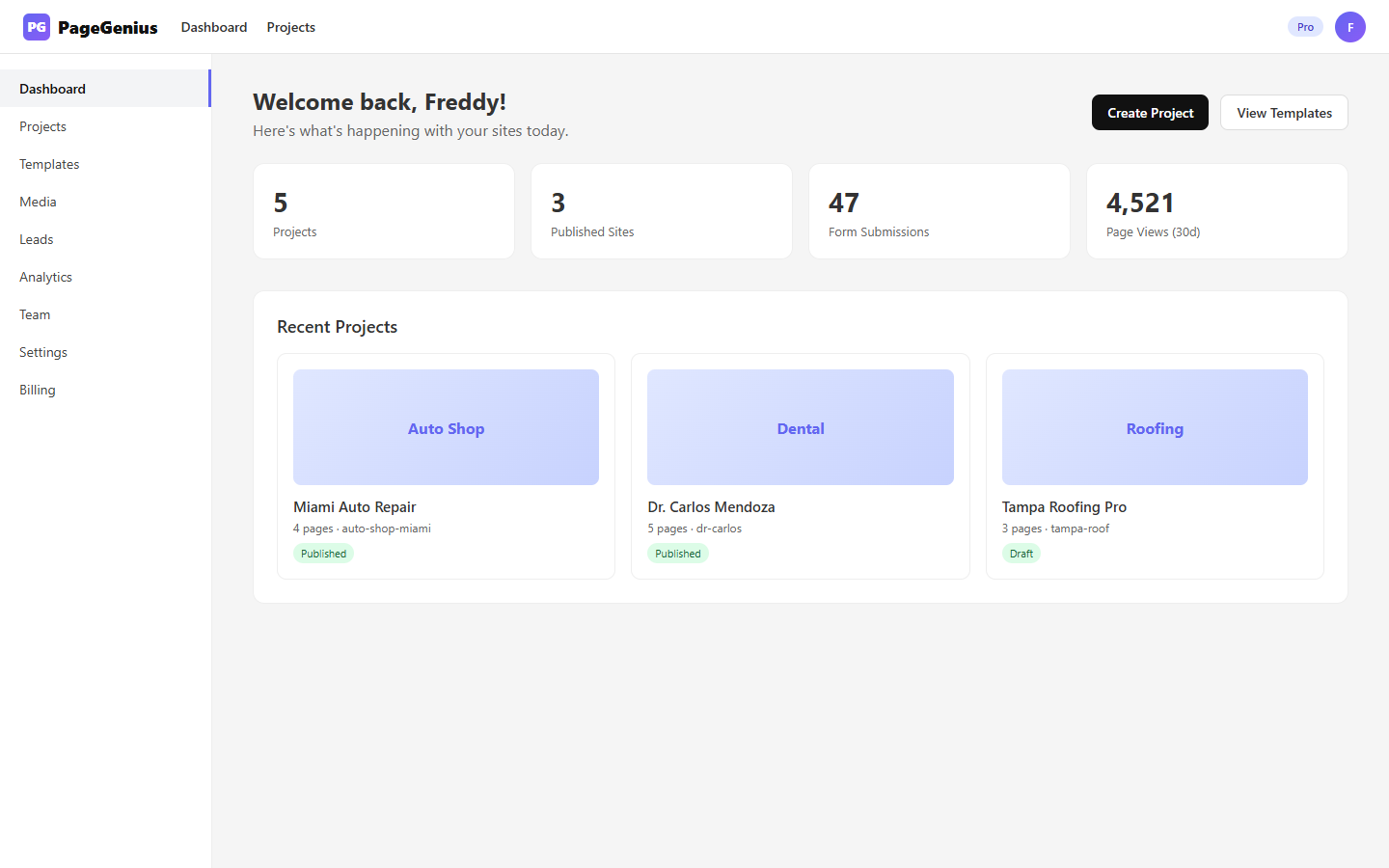
2.2 Stats Cards — What Each Number Means
| Stat | What it counts | Source | Update frequency |
|---|---|---|---|
| Projects | Total projects created in your organization | Direct DB count | Instant |
| Published | Projects with at least one published page | publishedHtml flag in DB | Instant |
| Leads | Form submissions received in the last 30 days | ActivityLog type submission | Every 5 min |
| Page Views | Visits to published pages in the last 30 days | ActivityLog type pageview | Every 5 min |
Click on each stat
- Projects → takes you to
/projects - Published → takes you to
/projectsfiltered by published - Leads → takes you to
/submissions - Page Views → takes you to
/analytics
2.3 Quick Actions
The 3 main buttons below the welcome message:
"Create Project"
Opens a modal with 2 options:
- Generate with AI → takes you to the AI wizard (see Chapter 3)
- Blank project → creates an empty project for you to build from scratch
"View Templates"
Takes you to the pre-designed template gallery. Includes:
- Minimal (clean, Apple-like)
- Bold (strong colors, impact)
- Professional (corporate)
- Visual (image-heavy)
- Vibrant (energetic, startups)
Premium templates require Pro plan or higher. Free templates work on any plan.
"Generate with AI"
Direct shortcut to the AI Generate wizard. Same as going to Projects → New → Generate with AI.
2.4 Recent Projects
Shows the last 3 projects you had open. Each card shows:
- Project name
- Slug (subdomain)
- Page count
- Status (Published / Draft)
- Thumbnail (if published)
Click on the project → Enter the builder directly.
Click "View all" → Go to the full projects list.
2.5 Onboarding Wizard (New Users)
If your organization has fewer than 2 projects, a progress bar appears:
Complete your setup:
[✓] Create organization
[✓] Create first project
[ ] Upload org logo
[ ] Connect custom domain
[ ] Invite a team member
Each completed task disappears. When everything is done, the bar hides.
Not mandatory. You can use PageGenius without completing all steps.
2.6 Plan Badge and Upgrade Prompts
In the top right corner (near your avatar) you see your current plan:
- Free — Gray chip. Yellow banner suggesting upgrade when:
- You try to create more than 1 project
- You try to add a custom domain
- You try to invite more than 1 member
- Pro — Blue chip. No common limits for most small agencies.
- Agency — Purple chip. Includes white-label (no PageGenius branding).
- Enterprise — Gold chip. Unlimited everything.
How to upgrade
- Click on your plan chip (or go to Billing)
- Select the new plan
- Click "Upgrade"
- You're redirected to Stripe Checkout (credit card)
- Upon completion, you return to PageGenius with the plan active immediately
2.7 Notifications
PageGenius shows toast notifications in the bottom right corner:
| Type | Color | When it appears |
|---|---|---|
| Success | Green | Saved, published, invited someone |
| Error | Red | Something failed (save, publish, AI timeout) |
| Info | Blue | Tips, reminders, upgrade prompts |
| Warning | Yellow | Plan limits reached |
2.8 Dashboard Problems and Solutions
"My stats aren't updating"
- Cause: Browser cache or 5-minute analytics delay.
- Solution: Refresh the page (
F5). If it persists, verify you have published sites with real traffic.
"I don't see the onboarding wizard"
- Cause: You already have 2+ projects. The wizard only appears for new organizations.
- Solution: Not a problem. You can access all features from the sidebar.
"The 'Generate with AI' button does nothing"
- Cause: You've reached your plan's AI generation limit.
- Solution: Free = 1 generation. Pro = 10/month. Agency = 999/month. Upgrade in Billing.
"My recent projects don't appear"
- Cause: You haven't created any projects yet.
- Solution: Click "Create Project" and follow the wizard.
Chapter 2 Summary
The dashboard is your command center. At a glance you know:
- How many projects you have
- How many are live
- How many leads you received
- How many people visited your sites
From here, all actions start: create, edit, publish, analyze.
Next chapter: Chapter 3: Projects and AI Generate