Chapter 1: Getting Started
How to sign up, create your organization, and understand the dashboard in 5 minutes.
1.1 Sign Up and Login
How to sign up
- Go to mypagegenius.com
- Click "Get Started Free" or "Sign Up"
- Choose one of these options:
- Email + password (we send a verification code)
- Google (quick sign-in with your Gmail account)
- Apple (if you're on iOS/Mac)
- Enter your name and accept the terms.
- You're in.
Common problem: I didn't receive the verification email
- Cause: Spam folder, or email provider delay.
- Solution: Check spam/promotions. If it doesn't arrive in 5 minutes, click "Resend code". If you used Gmail, also check the "Updates" tab.
1.2 Onboarding — Create Your First Organization
When you first log in, PageGenius asks you to create an Organization.
What is an organization?
It's your "main folder." All your projects (websites), team members, and settings live there. Examples:
- "Ad Wolves Media" (if you're an agency)
- "Mendoza Dental Clinic" (if you're a local business)
- "Freelance Web" (if you work solo)
Step by step
- Enter your organization name (can be changed later)
- Choose a slug (used in internal URLs, e.g.,
ad-wolves) - Click "Create Organization"
Expected screenshot:
[Input: Your organization name]
[Input: Slug]
[Button: Create Organization]
Common problem: "Slug is already in use"
- Cause: That exact slug already exists on the platform.
- Solution: Add a number or your city. E.g.,
ad-wolves-miami,dr-carlos-2026.
1.3 Dashboard Tour
Once inside, you'll see this screen:
+--------------------------------------------------+
|  PageGenius          [Projects] [Dashboard] ...    |
+--------------------------------------------------+
|  Welcome, Carlos!                                 |
|  [Create Project] [View Templates]               |
+--------------------------------------------------+
|  STATS                          QUICK ACTIONS     |
|  ┌──────────┐ ┌──────────┐     [Generate with AI] |
|  │ 3        │ │ 2        │     [Upload Image]     |
|  │Projects  │ │Published │     [View Analytics]   |
|  └──────────┘ └──────────┘                        |
|  ┌──────────┐ ┌──────────┐                        |
|  │ 47       │ │ 1,203    │                        |
|  │Submissions││Page Views│                        |
|  └──────────┘ └──────────┘                        |
|                                                   |
|  RECENT PROJECTS                                  |
|  [Auto Shop]  [Dental Clinic]  [+New]             |
+--------------------------------------------------+
Real screenshot: 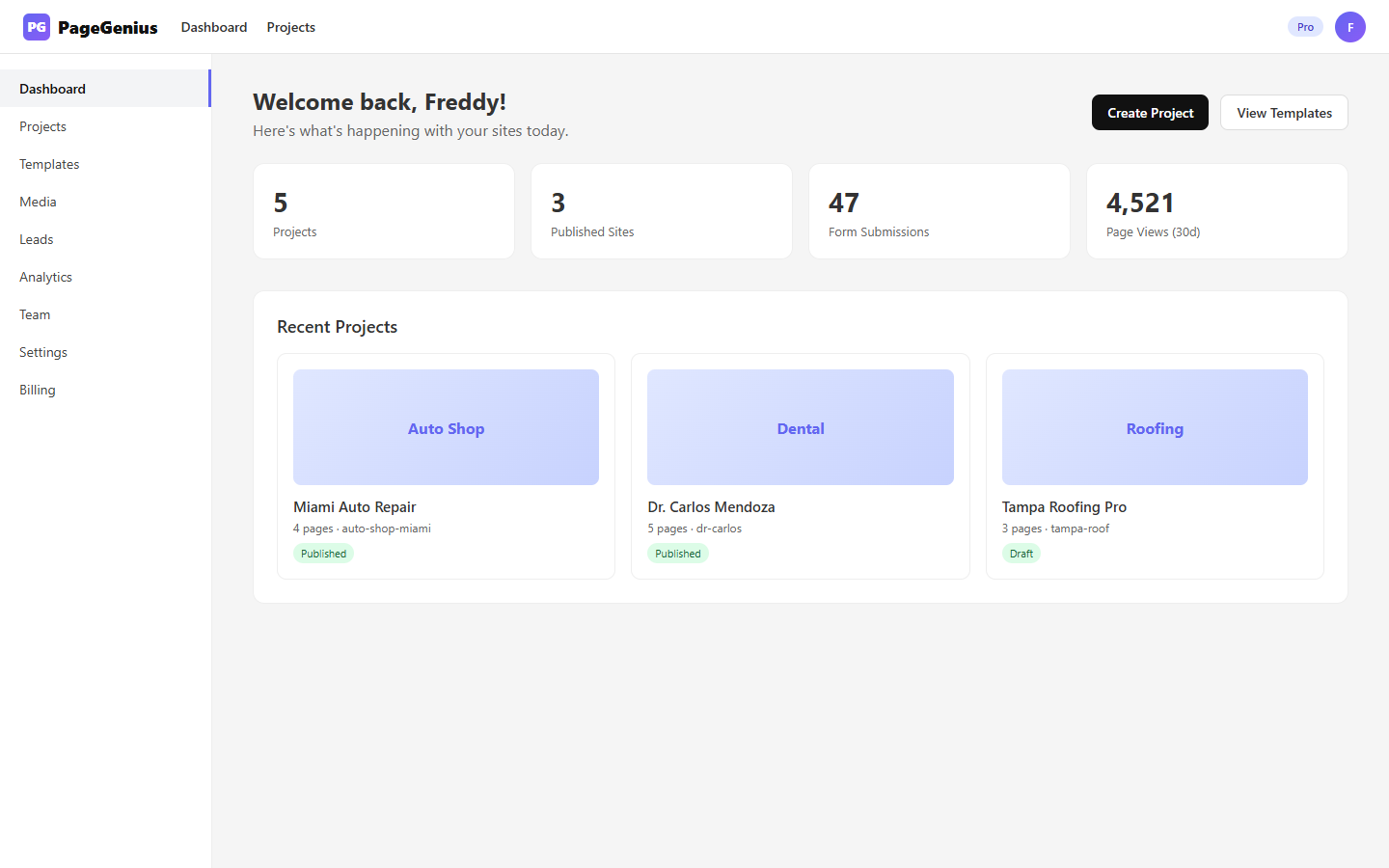
Dashboard elements explained
| Element | What it does |
|---|---|
| Stats cards | Shows totals for projects, published sites, form submissions, and page views (last 30 days). Updates automatically. |
| Quick actions | Shortcuts for the most common tasks: create project, upload image, view analytics. |
| Recent projects | The last 3 projects you touched. Click to enter the builder directly. |
| Plan badge | A chip saying Free / Pro / Agency next to your org name. If Free, a banner suggests upgrading. |
Common problem: "My stats are at 0 but I already have visits"
- Cause: Stats are calculated on a rolling 30-day window. If your site was published today, it needs 24h to accumulate data.
- Solution: Wait. Stats update in real-time once there's traffic.
1.4 Your First Project (AI Generate)
The fastest way to start.
- From the dashboard, click "Create Project"
- Select "Generate with AI"
- Fill out the form:
| Field | What to write | Good example | Bad example |
|---|---|---|---|
| Description | 1-2 sentences about your business | "Auto repair shop in Miami that fixes AC, brakes, and transmissions. Open Saturdays." | "A business" |
| Language | English or Spanish | English | (doesn't matter if targeting English speakers) |
- Click "Generate"
What the AI does behind the scenes
In ~30-90 seconds, the AI:
- Detects your industry (automotive, dental, roofing, etc.)
- Detects your city (for local SEO)
- Selects relevant widgets for that industry
- Generates specific copy (headlines, service descriptions, CTAs)
- Builds the page structure (home + secondary pages)
- Injects invisible Schema.org for Google
- Applies consistent colors and typography
Typical result
A new project with 4-5 pages:
- Home: Hero, Features, Services, Testimonials, Contact Form, Footer
- About: Story, Team, Stats
- Services: Service list with detailed descriptions
- Contact: Map, form, phone, hours
- (Optional) Emergency, Gallery, FAQ — depending on industry
1.5 Create a Blank Project
If you prefer to build everything yourself.
- Go to Projects → "New Project"
- Select "Blank Project"
- Enter the name and choose the language
- Click "Create"
You're taken to the builder with an empty Home page. From there, drag widgets and configure them.
1.6 Use a Template
- Go to Templates (from the sidebar)
- Click a template to preview it
- If you like it, click "Use this template"
- Enter your project name
- The template is cloned as a new project, ready to edit
Available templates
| Template | Style | Best for | Plan |
|---|---|---|---|
| Minimal | Clean, spacious, Apple-like | Professionals, consultants | Free |
| Bold | Strong colors, visual impact | Fitness, construction | Pro |
| Professional | Corporate, blues and grays | Lawyers, accountants | Pro |
| Visual | Image-heavy, galleries | Photographers, restaurants | Pro |
| Vibrant | Energetic, startups | Apps, marketing | Agency |
1.7 Main Navigation (Sidebar)
+-- Sidebar --------+
|  Dashboard        |
|  Projects         |
|  Templates        |
|  Media            |
|  Leads            |
|  Analytics        |
|  Team             |
|  Settings         |
|  Billing          |
+-------------------+
Each section is explained in depth in its respective chapter:
- Dashboard → Chapter 2
- Projects → Chapter 3
- Templates → Chapter 3
- Media → Chapter 3 (uploads section)
- Leads → Chapter 7
- Analytics → Chapter 7
- Team → Chapter 8
- Settings → Chapter 8
- Billing → Chapter 8
1.8 Change Language
PageGenius works in English and Spanish.
- Click your avatar (top right corner)
- Select "Language"
- Choose English or Español
This changes:
- The entire dashboard
- The builder
- AI-generated text (if you generate a new project)
Note: Existing projects do NOT change language automatically. To translate an existing project, use the "Translate project" feature in the builder.
Common problem: "I changed the language but the builder is still in English"
- Cause: The builder loads with the project language, not the user language.
- Solution: In the builder, click Settings (⚙️) → Project Language → change it there.
1.9 Keyboard Shortcuts
| Shortcut | What it does |
|---|---|
Ctrl/Cmd + S | Save page (in the builder) |
Ctrl/Cmd + P | Publish site (in the builder) |
Ctrl/Cmd + Z | Undo change |
Ctrl/Cmd + Shift + Z | Redo |
Esc | Close modal |
Chapter 1 Summary
| Step | Action | Result |
|---|---|---|
| 1 | Sign up | Account created |
| 2 | Create organization | Workspace ready |
| 3 | Create project with AI | Complete site in 60 sec |
| 4 | Explore dashboard | Understand stats and quick actions |
Next chapter: Chapter 2: Dashboard — Your Control Center